
Log in with a Passcode for Two-Step Login
How to use a passcode to authenticate with Two-Step Login
This article applies to: Two-Step Login
Get a Passcode from a Hardware Token
Acquire and enroll a hardware token that will display a passcode with a simple button push.
If you encounter a problem using a hardware token to log in, see some possible causes and solutions.
If the token generates anything other than a passcode, it is considered defective. While Duo's policy is to replace a defective token for up to six months after purchase, unfortunately, since the Cornell Store purchases tokens in bulk, by the time a user purchases a token from them, the warranty has expired. The only solution for a defective token purchased from the Cornell Store is to buy a new one or ask your department to replace the token.
For more information, see Duo Security's Guide to Two-Factor Authentication.
Log in with a Hardware Token Passcode
If your most recent Two-Step Login authentication used your hardware token, or if you have selected Hardware token from the Other options to log in list, then the Duo prompt will show the Enter your passcode screen. Then:
- Generate a passcode using your hardware token.
- Enter the passcode on the Duo prompt as indicated.
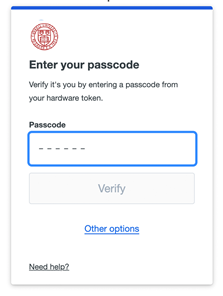
- Click Verify.
Use a Duo Mobile App Passcode
If you don't have a hardware token you can opt to use a mobile app passcode. Follow the same instructions found at "You Have Duo and Your Smartphone."
Support Contact:
Cornell IT Service Desk
Normal Business Hours: Monday-Friday, 8am-6pm (Eastern Time)
Open a ticket (24x7 support)
Emergency Service Disruptions: After Hours Support
Comments?
To share feedback about this page or request support, log in with your NetID